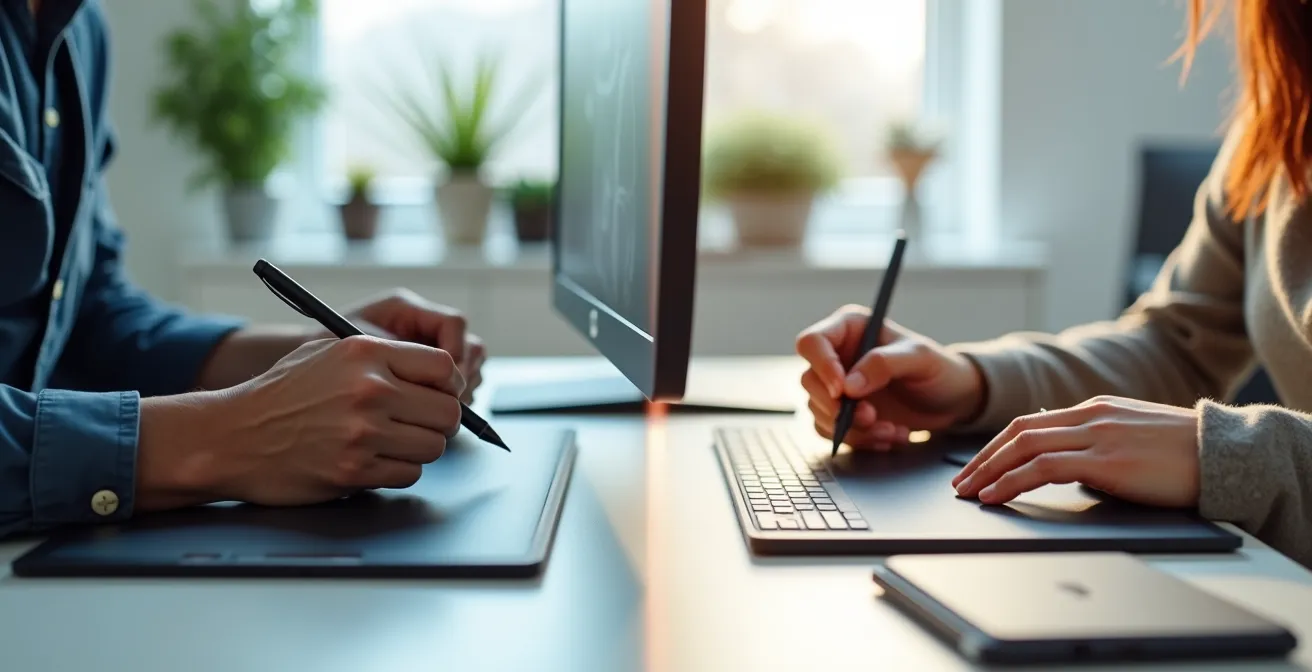
The best choice isn’t the device with the highest specs, but the ecosystem that best translates your existing skills from paper to screen.
- Standard tablets (e.g., iPad) offer an intuitive, all-in-one workflow perfect for direct drawing and portability.
- Drawing tablets (e.g., Wacom) integrate with powerful desktop software, offering limitless customization but a steeper learning curve.
Recommendation: Start by analyzing your current creative process—do you value portability and simplicity, or power and integration with a desktop setup?
For an artist accustomed to the tactile feedback of charcoal on paper or the fluid drag of a brush on canvas, the jump to a digital medium can feel daunting. The central question often becomes a seemingly simple hardware choice: a versatile consumer tablet like an iPad, or a specialized drawing tablet from brands like Wacom or Huion? The internet is filled with spec comparisons and budget-based advice, pushing concepts like resolution and pressure levels as the ultimate arbiters of quality.
This common approach, however, misses the most critical factor for a traditional artist: creative friction. This is the mental and physical resistance that arises when a tool disrupts your ingrained muscle memory and workflow. The glossy, unresponsive feel of a screen or the disconnect of drawing in one place while looking at another can sabotage the creative impulse before it even begins. The key isn’t to find the “best” tablet, but to build a complete workflow ecosystem—hardware, software, and habits—that minimizes this friction.
Instead of focusing on isolated features, this guide reframes the decision around your personal artistic process. We will dissect the technical jargon that actually matters, explore methods to retrain your brain for a digital canvas, and analyze the long-term implications of your software choices. By the end, you’ll be equipped to select not just a device, but an entire digital studio that feels like an extension of your hand, not an obstacle to your creativity.
For those who prefer a visual format, the following video provides a great overview of the different types of digital tablets available on the market, which will complement the detailed analysis in this guide.
To help you navigate this complex decision, this article is structured to address the most pressing questions a traditional artist faces. From demystifying technical specifications to mastering the digital transition, each section builds upon the last to provide a comprehensive framework for your choice.
Summary: A Traditional Artist’s Guide to Choosing a Digital Tablet
- Why Is 8192 Levels of Pressure Crucial for Digital Painting?
- How to Get Used to Drawing on Glass vs Paper?
- Perpetual License vs Subscription: Which Software Model Costs More long-term?
- Procreate or Photoshop: Which App Is Better for Illustration?
- When to Upgrade Your Tablet: Signs Your Device Stifles Creativity
- When to Upgrade Your GPU: The 3 Signs Your Card Is Obsolete
- How to Translate a Pinterest Board into a Real-Life Wardrobe?
- Laptop or Desktop: Which Choice Offers Better Performance for Video Editing?
Why Is 8192 Levels of Pressure Crucial for Digital Painting?
One of the most heavily marketed specifications for drawing tablets is pressure sensitivity, often touted with the magic number of 8,192 levels. This feature determines how the tablet interprets the force you apply with the stylus, translating it into variations in line thickness, opacity, or color. For a traditional artist, this mimics the responsive feel of a pencil or brush. The assumption is that more levels equal better, more nuanced control. However, this is largely a myth driven by marketing.
In practice, the human hand can’t discern such minute differences. A recent technical analysis reveals that most professional artists work comfortably with 4,096 levels and would not notice a tangible difference beyond that. The jump from 2,048 to 4,096 is noticeable, providing smoother transitions, but the leap to 8,192 offers diminishing returns for all but the most specialized use cases. The quality of the pressure *curve*—how the software translates pressure into a visual effect—is far more important than the raw number of levels.
This table breaks down the practical reality of pressure sensitivity levels for different types of artists, showing that the “pro-level” specs are often overkill for those starting out.
| Pressure Levels | User Type | Practical Impact | Price Range |
|---|---|---|---|
| 2048 | Beginners | Sufficient for learning | $50-100 |
| 4096 | Hobbyists | Good for most art styles | $100-200 |
| 8192 | Semi-professionals | Smoother gradients | $200-500 |
| 16384 | Professionals | Marginal improvement | $500+ |
Case Study: The Real Value for Beginners
A real-world test of the Huion Kamvas Pro 16 (2.5K) in April 2024 highlighted this perfectly. While users could create detailed art with its 8,192 pressure levels, they noted that for a beginner, having a programmable button for the undo command (Ctrl+Z) was infinitely more valuable for the learning process than the ultra-high sensitivity. This proves that workflow enhancements often trump raw hardware specifications.
Therefore, instead of getting fixated on the highest number, a beginning digital artist should prioritize a tablet with a well-regarded pen and customizable software settings. A device with 4,096 levels is more than sufficient. Focus your budget on other aspects of your workflow ecosystem, such as a better display or more comfortable ergonomics.
How to Get Used to Drawing on Glass vs Paper?
The most significant source of “creative friction” for a traditional artist is the transition from the textured, yielding surface of paper to the smooth, rigid surface of glass. This disconnect is twofold: the physical feel and, for screenless tablets, the hand-eye coordination challenge. As one expert guide notes, this is a fundamental hurdle in the digital transition.
Getting the habit of looking at the screen instead of the hand is not natural for the drawer, and paradoxically, one is usually obliged to use these tablets
– Graphics Tablet Tutorial Expert, ISKN Professional Drawing Guide
Overcoming this requires a conscious effort of muscle memory translation. It’s not about waiting for it to feel natural; it’s about actively retraining your brain and hand. While matte screen protectors can add a bit of “tooth” to the surface to mimic paper, the core work is done through targeted practice. The goal is to build new neural pathways that make the digital tool feel as intuitive as a pencil.
This process involves simple, repetitive drills that isolate specific skills: line confidence, pressure control, and hand-eye coordination. Committing to a short, daily practice routine is far more effective than sporadic, long drawing sessions. It’s about consistency, not intensity.
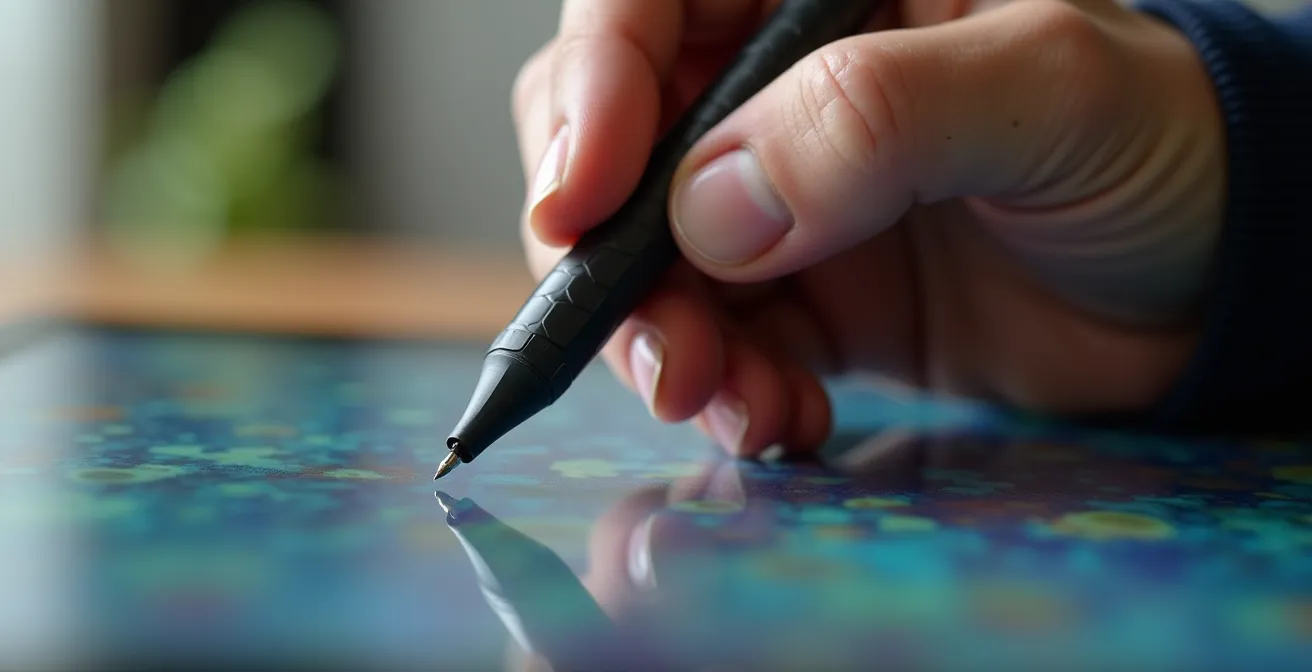
The exercises below are designed to build foundational skills quickly. They force you to focus on precision and control, rewiring your brain to trust what you see on the screen rather than what your hand feels. They are the digital equivalent of practicing scales on a musical instrument.
Your Action Plan: The Daily Brain Rewiring Drill
- Precision Practice: Position circles of different diameters on the canvas and connect them from largest to smallest to train your aim.
- Pressure Control: Create black-to-white gradient exercises between two circles to master the full range of your tablet’s pressure sensitivity.
- Natural Movement: Use the rotation tool (often the ‘R’ key) to rotate the canvas, allowing your hand to draw smooth lines with its natural arcing motion.
- Immediate Correction: Set the undo command (Ctrl+Z) to a stylus button for rapid corrections, which accelerates the learning process by reducing frustration.
- Focused Start: Begin with simple line drawings in black and white only, using a maximum of three different brushes to avoid getting overwhelmed.
By internalizing these movements, the glass surface and screen disconnect will gradually fade into the background, allowing your creative intent to flow directly onto the digital page.
Perpetual License vs Subscription: Which Software Model Costs More long-term?
Choosing your hardware is only half the battle; the software you run on it defines your creative capabilities and long-term costs. The industry is split between two primary models: the perpetual license (a one-time purchase, like older versions of Photoshop or apps like Procreate) and the subscription model (a recurring monthly or annual fee, like Adobe Creative Cloud). The choice between them is a strategic decision that impacts your entire workflow ecosystem.
A perpetual license offers the psychological comfort of ownership. You buy it once, and it’s yours forever. This can feel more budget-friendly upfront, especially for an artist starting out. However, this model comes with hidden costs. Major updates or new versions often require an additional purchase, and over time, the software can become incompatible with new operating systems or hardware, forcing an expensive upgrade.
Conversely, a subscription model feels like a constant drain on resources. Yet, it provides continuous updates, bug fixes, and access to the latest features and cloud services. This ensures your tools are always compatible with the newest hardware and operating systems. From a long-term investment horizon, the subscription can be seen as a predictable operational cost that guarantees a state-of-the-art toolkit, whereas the perpetual model involves unpredictable capital expenditures every few years.

Ultimately, the “more expensive” model depends on your timeline and needs. For a hobbyist who is content with a fixed set of features, a perpetual license like Procreate is incredibly cost-effective. For a professional who needs access to the latest industry-standard tools and collaborative features, a subscription to Adobe Creative Cloud is often a necessary and justifiable business expense. It’s a choice between a fixed asset and a continuous service.
Procreate or Photoshop: Which App Is Better for Illustration?
The software debate often boils down to two titans: Procreate and Adobe Photoshop. However, comparing them directly is like comparing a specialized chef’s knife to a multi-tool. Both are excellent, but they are designed for fundamentally different workflow ecosystems. The right choice for a traditional artist depends entirely on their desired process and end goal.
Procreate, exclusive to iPad, is the chef’s knife. It is a highly optimized, focused, and intuitive application built from the ground up for drawing and painting. Its interface is clean and unobtrusive, minimizing the “creative friction” for an artist transitioning from paper. The learning curve is gentle, allowing you to start creating almost immediately. It excels at raster-based illustration and feels incredibly responsive. Its main limitation is its simplicity; it lacks the advanced photo-manipulation, vector, and typography tools of its larger counterpart. It’s a dedicated illustration studio in your hands.
Adobe Photoshop, on the other hand, is the multi-tool. Born as a photo editor, it has evolved into a powerhouse for nearly every digital imaging task, including illustration. Its strength lies in its sheer power and integration within the Adobe Creative Cloud. It offers a vast array of brushes, filters, adjustment layers, vector capabilities, and text tools that are unmatched. This power comes at the cost of complexity. For a beginner, its interface can be overwhelming, and its true potential is only unlocked when paired with a powerful desktop or laptop computer. It’s the hub of a professional multidisciplinary design workflow.
For a traditional artist focused purely on learning digital painting and drawing, Procreate is often the better starting point. Its focused design allows you to master the fundamentals of digital art without being bogged down by a complex interface. As your needs grow, you may find yourself exporting work from Procreate into Photoshop on a desktop for final touches, color correction, or integration with graphic design elements, thus using both tools for their respective strengths.
When to Upgrade Your Tablet: Signs Your Device Stifles Creativity
When you’re starting out, any functional drawing tablet feels like a leap forward. But as your skills develop, your entry-level device can transform from an enabler into a bottleneck. Recognizing the signs that your hardware is stifling your creativity is key to knowing when to invest in an upgrade. This isn’t about chasing the latest model; it’s about removing barriers in your workflow ecosystem.
The most obvious sign is performance lag. If you experience a noticeable delay between your stylus stroke and the line appearing on screen, especially with larger brushes or complex files, your tablet’s processor or your computer’s connection is struggling to keep up. This lag is a major source of creative friction, breaking the intuitive flow between your hand and the image. It forces you to work slower and more deliberately, killing spontaneity.
Another key indicator is a lack of features that you now understand you need. You might find your tablet lacks tilt or rotation sensitivity, preventing you from creating the broad, angled strokes you could with a traditional pencil or brush. Or perhaps the screen resolution is too low, making it difficult to work on fine details without constantly zooming in and out. You may also find the physical size of the active drawing area is too small, forcing cramped, unnatural hand movements for sweeping lines.
Finally, listen to your body. If you experience hand cramps, wrist pain, or eye strain after long sessions, the ergonomics of your setup may be to blame. An upgrade could mean a larger screen to improve posture, a more comfortable stylus, or a display tablet that eliminates the hand-eye disconnect entirely. When your tool causes physical discomfort, it actively discourages you from creating. Upgrading becomes an investment in your health and long-term productivity.
When to Upgrade Your GPU: The 3 Signs Your Card Is Obsolete
Your tablet is an input device; it’s the creative interface. But if you’re using a graphics tablet or a display tablet connected to a computer, the performance of that computer is just as crucial. The Graphics Processing Unit (GPU), or video card, is the engine that renders the image, and a weak GPU can create a bottleneck that even the most expensive tablet can’t overcome. For a digital artist, an obsolete GPU manifests as severe creative friction.
The first and most infuriating sign is brush lag. You’re working on a high-resolution canvas with a complex, textured brush, and the line stutters and struggles to keep up with your hand. This is often because the GPU cannot process the complex texture and blending calculations in real-time. Modern art applications like Photoshop and Krita increasingly use the GPU to accelerate brush engines, so a card that was fine a few years ago may now be a major performance drag.
The second sign is difficulty with specific features. Functions like canvas rotation, smooth zooming, or certain filters (like Liquify or blur galleries in Photoshop) may become slow and choppy. If rotating your digital canvas to get the right drawing angle feels sluggish, your GPU is likely the culprit. This forces you to adapt your workflow to the tool’s limitations, rather than having the tool adapt to you—the exact opposite of a fluid creative process.
Finally, a clear sign of obsolescence is a lack of driver support for new software versions or operating systems. As applications evolve, they rely on newer GPU technologies. If your card’s manufacturer no longer releases updated drivers, you may face graphical glitches, crashes, or find that new GPU-accelerated features are simply disabled. At this point, your GPU is not just slow; it’s a liability to the stability of your entire workflow ecosystem.
How to Translate a Pinterest Board into a Real-Life Wardrobe?
This question may seem out of place in a discussion about digital art. However, for any creative, the process of turning a collection of disparate ideas—a Pinterest board—into a coherent, functional final product—a curated wardrobe—is a universal challenge. Let’s reframe this for our context: how does a digital artist build an effective inspiration-to-creation pipeline? Your choice of tablet and software ecosystem is central to this process.
The first stage is a seamless collection of inspiration. A standard tablet like an iPad excels here. You can browse for reference on Pinterest, take screenshots, and immediately pull them into your drawing app like Procreate using split-screen multitasking. This creates a fluid, uninterrupted flow from discovery to ideation. You can sketch directly over your references, pull color palettes, and create mood boards all within a single, portable device. This is the digital equivalent of pinning fabric swatches next to a sketchpad.
The next stage is translation and synthesis—turning those ideas into a unique creation. This is where more powerful software ecosystems, often tied to drawing tablets and desktops, show their strength. Applications like Photoshop, paired with asset management tools like Adobe Bridge, allow you to organize vast libraries of reference images, custom brushes, and textures. You can work on large, complex files with hundreds of layers, non-destructively experimenting with different compositions and color schemes. This robust environment is like a designer’s studio, with dedicated space for every part of the process.
Ultimately, your digital tools should make this translation process easier, not harder. A good ecosystem allows you to capture inspiration frictionlessly and provides the power and organization needed to refine that inspiration into a finished piece of art. The goal is to close the gap between the vision on your “Pinterest board” and the final “wardrobe” you present to the world.
Key Takeaways
- Focus on the overall workflow ecosystem (tablet + computer + software), not just the tablet’s specs.
- The “paper feel” can be simulated with screen protectors and practice, but overcoming the hand-eye disconnect is the real challenge.
- The software choice (subscription vs. perpetual, simple vs. complex) will define your long-term creative capabilities and costs.
Laptop or Desktop: Which Choice Offers Better Performance for Video Editing?
While this question specifies video editing, the core principles of performance—processing power, memory, and graphics capability—apply directly to demanding digital illustration work. For an artist using a software ecosystem built around applications like Adobe Photoshop or Corel Painter, the choice between a laptop and a desktop is a fundamental decision about portability versus power.
A desktop computer is the undisputed champion of raw performance and value. For the same price as a high-end laptop, you can build or buy a desktop with a faster processor, more RAM, and a significantly more powerful GPU. This power translates directly to a smoother artistic experience: no brush lag on 8K canvases, instantaneous filter application, and the ability to handle files with hundreds of layers without a stutter. Furthermore, desktops offer superior ergonomics (larger monitors at eye level) and easy upgradeability, allowing your system to grow with your skills. Its only drawback is that it anchors your studio to a single location.
A laptop, in contrast, offers the freedom to create anywhere. This is a massive advantage for artists who travel, work in different locations, or simply prefer to draw on the couch. Modern high-end laptops (especially those marketed for “creators” or gaming) are incredibly powerful and can handle most professional illustration tasks. However, this portability comes with compromises. Laptops are more expensive for equivalent performance, generate more heat under load (which can lead to performance throttling), and have limited upgrade options. You are essentially locked into the hardware configuration you buy.
The best choice depends on your workflow. If you primarily use a standalone tablet like an iPad with Procreate, this question is moot. But if your workflow relies on a powerful hub computer paired with a Wacom or Huion tablet, the decision is crucial. A desktop provides the most power and future-proofing for a dedicated home studio, while a laptop offers the flexibility for a mobile creative life, at a premium.
Frequently Asked Questions on Tablets for Illustration
Can I use free software like Krita effectively with drawing tablets?
Yes, Krita fully supports pressure sensitivity and tilt recognition. However, expect more time troubleshooting and fewer structured tutorials compared to paid alternatives.
How do subscription updates affect hardware compatibility?
Subscription software receives regular updates that maintain compatibility with new hardware, while perpetual licenses may become incompatible with future tablet models without additional purchases.
Now, equipped with a deeper understanding of the technology and the workflow, you can assess your personal needs and choose the digital ecosystem that will empower, not hinder, your unique artistic voice as you transition from the traditional to the digital canvas.