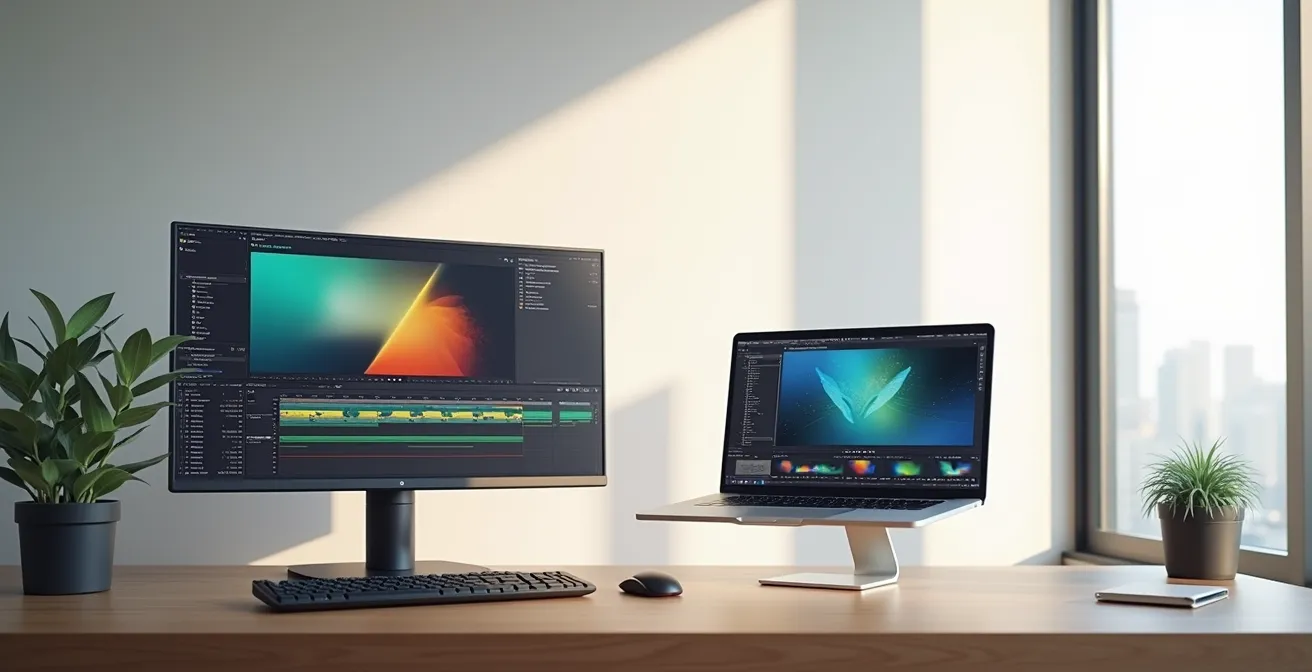
For a professional video editor, a desktop workstation is unequivocally the superior long-term investment, not for its raw power, but for its ability to mitigate the hidden performance bottlenecks that silently cripple productivity and inflate total cost of ownership.
- Laptops suffer from aggressive thermal throttling under sustained loads, whereas desktops maintain peak performance through superior cooling and airflow management.
- Desktops offer a significantly lower total cost of ownership (TCO) due to modular GPU and component upgrades, avoiding the need to replace the entire machine every few years.
Recommendation: Prioritize a desktop build to ensure thermal stability and long-term upgradeability. Treat a laptop as a secondary device for on-set work or client meetings, not as your primary production machine.
As a creative freelancer, the laptop versus desktop debate feels endless. The allure of a sleek, powerful laptop is strong—the promise of editing 4K footage from a café or on a client’s couch. We’re told that modern laptops now rival desktops in raw specs, making portability a zero-compromise choice. This simplifies the decision to a matter of lifestyle. But for a professional whose income depends on render times, timeline fluidity, and uninterrupted creative flow, this surface-level comparison is dangerously misleading.
The conventional wisdom focuses on CPU clock speeds and GPU model numbers. However, years of experience in the editing bay reveal a different truth. The real performance killers aren’t found on the spec sheet. They are the silent enemies: thermal throttling during a long export, storage bottlenecks that cause timeline stutter, and the ergonomic debt that builds up over countless 8-hour sessions. The a laptop’s compact form factor, its primary selling point, is also the source of its greatest professional limitations.
This article moves beyond the generic “power versus portability” argument. We will dissect the strategic implications of your hardware choice, guided by one core principle: maximizing long-term productivity and minimizing total cost of ownership. We will explore why a new processor might not speed up your computer, how dust can be more destructive than overclocking, and why the upgrade path for a desktop makes it the most financially sound decision for any serious video editor. This isn’t just about buying a computer; it’s about building a reliable foundation for your creative business.
This guide will explore the crucial, often-overlooked factors that determine true workstation performance. By understanding these technical nuances, you can make an informed investment that supports your craft not just for the next project, but for the next five years of your career.
Summary: The Definitive Hardware Guide for Professional Video Editors
- Why Is Your Computer Slow Even With a New Processor?
- How to Position Your Monitor to Avoid Neck Strain During 8-Hour Shifts?
- The Dust Buildup Error That Kills Components Faster Than Overclocking
- How to Disable Background Processes That Eat Up 30% of Your RAM?
- When to Upgrade Your GPU: The 3 Signs Your Card Is Obsolete
- How to Ask for a Home Office Stipend Without Sounding Greed?
- Why Is 8192 Levels of Pressure Crucial for Digital Painting?
- Tablet vs Drawing Tablet: Which Tool Is Best for Beginning Illustrators?
Why Is Your Computer Slow Even With a New Processor?
It’s a frustratingly common scenario for editors: you’ve just invested in a top-of-the-line CPU, expecting lightning-fast performance, yet your timeline still stutters and renders crawl. The reason is that the CPU is only one link in the performance chain. The most powerful processor in the world is useless if it’s constantly waiting for data. This is where the concept of component bottlenecks comes into play, and it’s a primary differentiator between a professional desktop workstation and a compromised laptop setup.
The two most common culprits are your storage and your RAM. Many systems, including high-end laptops, are still configured with SATA-based SSDs to save cost. While fast for general use, their maximum speed of around 600 MB/s is a massive bottleneck when scrubbing through multiple 4K streams. Furthermore, the communication speed between your RAM and your storage is critical. Technical analysis shows that RAM can serve data 1000 times faster than even NVMe SSDs, which means any delay in getting data from the drive to the RAM creates a lag that the CPU can’t overcome. In a desktop, you have the physical space and motherboard support to build a tiered storage system (e.g., a Gen4 NVMe for OS/apps, another for cache, and large SSDs for media) that a laptop simply cannot accommodate.
Another subtle bottleneck is the codec itself. Highly compressed codecs like H.264/H.265 are great for capture but require immense CPU power to decompress in real-time on the timeline. A professional workflow involves converting this footage to an intermediate codec like ProRes or DNxHR. These files are larger, but they are far less taxing on the CPU, resulting in a smoother editing experience. This is a workflow solution that highlights how performance is a combination of hardware and process, an ecosystem that is best optimized in a flexible desktop environment.
Action plan: Identifying and resolving storage bottlenecks
- Upgrade your primary drive: Transition from a SATA SSD (max 600 MB/s) to at least a Gen3 NVMe (up to 3,500 MB/s) for your OS, applications, and cache files to dramatically improve timeline responsiveness.
- Convert your footage: Before editing, transcode compressed camera footage to an intermediate codec like Apple ProRes or Avid DNxHR to reduce the real-time decoding strain on your CPU.
- Verify system-level integrity: Ensure your motherboard’s VRMs (Voltage Regulator Modules) have adequate cooling to prevent CPU throttling, and confirm your RAM speed is correctly configured in the BIOS to match your CPU’s specifications.
How to Position Your Monitor to Avoid Neck Strain During 8-Hour Shifts?
While we obsess over gigahertz and gigabytes, one of the most significant factors in a freelancer’s long-term productivity is physical endurance. The “laptop hunch” isn’t just a meme; it’s a direct path to chronic neck and back pain, a form of ergonomic debt that can derail a career. A laptop’s fundamental design, which tethers the screen to the keyboard, makes proper ergonomic positioning impossible without external peripherals, defeating its purpose as a standalone device.
A proper ergonomic setup is non-negotiable for anyone spending 8+ hours a day editing. The core principle is to decouple your screen height from your input devices. Your monitor(s) should be positioned so that the top of the screen is at or slightly below eye level. This encourages a natural gaze angle of 15 to 20 degrees downward, which minimizes strain on your neck muscles. The screen should be about an arm’s length away to prevent eye strain.

This setup, easily achievable with a desktop and a good quality monitor arm, is a foundational element of a professional workstation. It allows for a dual-monitor configuration—essential for an efficient editing layout (e.g., timeline on one screen, bins and scopes on the other)—without compromising posture. A laptop forces a constant compromise: either your screen is too low, or your keyboard is too high. Over weeks and years, this compromise leads to fatigue, reduced focus, and potential long-term injury. A desktop setup is an investment in your physical health, which is a direct investment in the longevity of your career.
The Dust Buildup Error That Kills Components Faster Than Overclocking
The single greatest enemy of sustained performance in any computer, especially a compact laptop, is heat. And the greatest amplifier of heat is dust. While overclocking gets a lot of attention as a risky way to push hardware, a far more common and insidious performance killer is the slow, silent strangulation of your cooling system by dust accumulation. This is where the physical design of a desktop provides an insurmountable advantage in reliability and longevity.
In a laptop, the cooling system is a marvel of miniaturization, typically consisting of a few small, high-RPM fans and a cramped heatsink assembly. This design is highly susceptible to clogging. As dust builds up on the heatsink fins and fan blades, airflow is restricted. The system’s response is aggressive thermal throttling: the CPU and GPU automatically reduce their clock speeds to prevent overheating. You don’t get a warning message; your renders just get progressively slower, and your timeline becomes less responsive over time. Real-world analysis of user reports shows that laptop users frequently encounter this silent performance degradation, especially during long, intensive tasks like video exporting.
A desktop, by contrast, is designed for thermal management. A good case uses a positive air pressure configuration (more intake fans than exhaust fans), with filters on all intakes. This design minimizes dust entry and makes routine maintenance, like blowing out filters, a 30-second task. The large heatsinks and multiple, slow-spinning case fans are far more efficient and quieter than the screaming fans of a thermally-stressed laptop.
| Factor | Laptop | Desktop |
|---|---|---|
| Cooling Design | Compact heatsink, 1-2 small fans | Large heatsinks, multiple case fans |
| Dust Impact | Aggressive throttling under load | Maintains peak performance with maintenance |
| Noise Level (Under Load) | Loud fan noise disrupts audio editing | Can be optimized for near-silent operation |
| Maintenance Access | Difficult disassembly required | Easy side panel removal |
How to Disable Background Processes That Eat Up 30% of Your RAM?
RAM (Random Access Memory) is your workstation’s active workspace. Every clip on your timeline, every effect, every transition, and the editing application itself all need to live in RAM for you to work with them in real time. When you run out of RAM, the system starts using your much slower SSD or hard drive as a “scratch disk,” causing a dramatic and jarring drop in performance. For this reason, having an adequate amount of RAM is non-negotiable, but simply having a lot of it isn’t enough; you must also manage it effectively.
The professional consensus is clear: for fluid 4K video editing, a minimum of 32GB of RAM is recommended, with 64GB or more being ideal for complex timelines with heavy effects or for working with 6K or 8K footage. However, a significant portion of your RAM can be consumed before you even launch your editing software. Bloatware, cloud-syncing services, automatic updaters, and countless other background processes can easily eat up 8-12GB of your precious RAM. On a laptop, which often comes pre-loaded with manufacturer software, this problem can be particularly severe.
Taming these processes is a crucial optimization step. On both Windows (via Task Manager and Services) and macOS (via Activity Monitor and launchd), you must be ruthless in identifying and disabling non-essential startup items and background services. Processes like cloud storage clients (e.g., Dropbox, OneDrive), communication apps, and software updaters should be configured to not run automatically at startup. The goal is to create a “clean” editing environment where the vast majority of your system’s resources, especially RAM, are dedicated to your NLE (Non-Linear Editing) software. This level of system control is a hallmark of a professional workstation and ensures that the hardware you paid for is actually working for you.
When to Upgrade Your GPU: The 3 Signs Your Card Is Obsolete
The GPU (Graphics Processing Unit) has become increasingly central to video editing, accelerating everything from color grading and effects rendering to AI-powered features like scene-cut detection. But the rapid pace of GPU development means that today’s high-end card can become tomorrow’s bottleneck. Knowing when to upgrade is key, and this is where the economic argument for a desktop becomes undeniable, directly impacting your Total Cost of Ownership (TCO).
There are three primary signs that your GPU is obsolete for professional work. First is a lack of VRAM (Video RAM); if you’re frequently encountering “out of memory” errors when working with high-resolution textures or complex Fusion/After Effects compositions, your card’s VRAM is insufficient. Second is poor playback performance with GPU-accelerated effects; if adding a simple color grade or noise reduction effect causes your timeline to drop frames, your GPU’s processing cores can no longer keep up. The third sign is the lack of support for new, essential technologies. For example, the hardware-accelerated encoding/decoding of modern codecs (like AV1 or specific H.265 profiles) is often limited to the latest generation of GPUs.
Herein lies the critical difference: a desktop user can address this obsolescence by swapping out the GPU in about 30 minutes for a cost of $500 to $1500. This single upgrade can keep the entire system relevant and productive for another 2-3 years. A laptop user, however, faces a stark reality. The GPU is soldered to the motherboard. When it becomes a bottleneck, the *entire machine* must be replaced, incurring a cost of $2000 to $4000. Over a typical 5-year professional lifecycle, a freelancer might go through one desktop with one GPU upgrade, whereas a laptop-based editor might be forced to buy two separate high-end machines, making the laptop’s TCO significantly higher despite a potentially similar initial purchase price.
How to Ask for a Home Office Stipend Without Sounding Greed?
As a freelancer or remote employee, investing in a proper desktop workstation is an investment in productivity that directly benefits your clients or employer. However, asking for a stipend to cover a $3,000+ machine can be intimidating. The key is to frame the request not as a personal perk or a matter of comfort, but as a clear-headed Return on Investment (ROI) proposition. You must shift the conversation from “I want a new computer” to “This tool will make me more efficient and save you money.”
Start by quantifying your current workflow’s inefficiencies. Track the time you spend on daily renders, exports, and transcodes. Then, using benchmark data for the proposed desktop hardware, project the time savings. For example, if a new desktop can save you one hour per day in rendering time, and your hourly rate is $75, the machine generates $375 in productive value each week. This data transforms the request from an expense into a strategic investment. The negotiation experts at Finchley Studio provide a powerful framework for this conversation:
A desktop workstation will save X hours per week in rendering time. At my hourly rate, this machine pays for itself in Y months
– Professional Negotiation Framework, Finchley Studio Video Editing Guide
To make the initial cost more palatable, propose a leasing option. Many vendors offer hardware leasing for $200-$300 per month, which can be presented as a predictable operational expense rather than a large capital expenditure. Also, be sure to emphasize the ergonomic and long-term health benefits. A proper, ergonomic desktop setup reduces the risk of Repetitive Strain Injury (RSI), which is a real long-term cost to productivity. By presenting a well-researched case backed by productivity data and a clear ROI timeline, you position yourself as a strategic partner, not a demanding contractor.
Why Is 8192 Levels of Pressure Crucial for Digital Painting?
While often associated with digital illustration, a pressure-sensitive drawing tablet is a secret weapon for efficient video editing, particularly in tasks requiring precision and nuance. The headline feature of modern tablets from brands like Wacom or Huion is the 8192 levels of pressure sensitivity. This might seem like overkill, but for detailed video work like rotoscoping, masking, and even precise color grading adjustments, this level of control translates directly into speed and quality.
Imagine painting a complex mask around a moving subject. With a mouse, you are essentially drawing with a binary tool—it’s either on or off. You click, drag, and adjust Bézier handles in a slow, mechanical process. With a pressure-sensitive pen, you can vary the size, opacity, and hardness of your brush stroke in a single, fluid motion, just like a real paintbrush. The 8192 levels of pressure allow for incredibly subtle gradations, enabling you to create soft, feathered edges on your masks organically, rather than through clunky interface sliders.
The productivity gains are significant. A case study in PC World highlights that video editors using high-sensitivity tablets report up to 40% faster rotoscoping and mask creation compared to mouse-only workflows. This is another area where the desktop ecosystem shines. Desktops provide an abundance of easily accessible USB ports for natively connecting these essential peripherals. Laptop users, on the other hand, often find themselves wrestling with a chain of dongles and limited I/O, creating workflow friction that adds time and frustration to the creative process. The ability to seamlessly integrate these specialized tools is a core advantage of a dedicated desktop workstation.
Key takeaways
- A desktop’s primary advantage is not just power, but superior thermal management that prevents performance throttling under sustained professional workloads.
- The Total Cost of Ownership (TCO) for a desktop is significantly lower due to modular upgrades (especially GPU), avoiding the need to replace the entire machine every 2-3 years.
- Proper ergonomics, easily achievable with a desktop, are a critical investment in career longevity, preventing the chronic pain and fatigue associated with laptop use.
Tablet vs Drawing Tablet: Which Tool Is Best for Beginning Illustrators?
For creative professionals, the term “tablet” can be confusing, referring to two very different devices: a general-purpose tablet like an iPad, and a dedicated drawing tablet like a Wacom. While the title of this section references illustrators, for a video editor, the distinction is even more critical and ties directly back to workflow integration and ergonomics. The choice isn’t about which is “better,” but which is the right tool for a specific job within a desktop-centric workflow.
An iPad, with its brilliant screen and powerful apps like LumaFusion, excels as a mobile editing tool or a wireless second monitor/control surface via apps like TouchOSC or Sidecar. It’s fantastic for making initial selects on set or for using as a touch-based interface for your color wheels. However, using it as a primary input device for a desktop NLE can be ergonomically challenging, often recreating the “laptop hunch” by forcing you to look down.
A dedicated drawing tablet, especially a screenless model, is designed for a completely different purpose. It is a pure precision input device that integrates natively with all major editing applications. Its primary function is to replace the mouse for tasks that require analog control: drawing masks, rotoscoping, and making fine adjustments. Because it’s screenless, it allows you to maintain perfect posture, looking forward at your main monitors while your hand rests comfortably on the desk. This seamless integration into an ergonomic desktop setup is its greatest strength.
| Feature | iPad (Tablet) | Drawing Tablet (Wacom) |
|---|---|---|
| Primary Use | Wireless control surface, second monitor | Direct precision input for masking |
| Workflow Integration | LumaFusion for mobile cuts, then desktop finish | Direct timeline manipulation |
| Desktop Compatibility | Requires additional software (TouchOSC) | Native support in all editing apps |
| Ergonomic Impact | Can cause neck strain like a laptop screen | Screenless models preserve good posture |
Assess your workflow bottlenecks today to build a workstation that doesn’t just work, but accelerates your creative output and profitability.