
The secret to work-life balance at home isn’t a better schedule or a separate room; it’s designing distinct operational systems for your work and personal lives.
- Establish clear communication protocols to dictate which tools are used for which tasks, reducing the constant “on” alerts.
- Implement ergonomic discipline and conscious movement to fight the physical strain of a sedentary home office.
Recommendation: Start by auditing one system—your communication, your ergonomics, or your meeting culture—and optimize it before tackling the others.
When your commute is a ten-second walk from the coffee maker to your laptop, the lines between “work” and “life” don’t just blur—they dissolve. You’re likely familiar with the standard advice: create a dedicated workspace, stick to a strict 9-to-5 schedule, and have a “shutdown ritual.” While well-intentioned, this advice often fails because it addresses the symptoms, not the root cause. The problem isn’t just physical proximity; it’s the lack of systemic separation in our tools, communication habits, and even our physical well-being.
Many telecommuters find themselves answering emails during dinner or mulling over a project while trying to relax, not because they lack willpower, but because their work systems are designed to be perpetually “on.” This constant cognitive load leads to burnout and a feeling of being trapped, even in the comfort of your own home. But what if the true key to disconnecting wasn’t about building a wall, but about building better systems? What if the solution lies not in managing your time, but in managing your operational protocols?
This guide offers a different perspective. Instead of focusing on space and time, we will explore how to design distinct operational systems for your professional and personal self. We will deconstruct the core challenges of remote work—from creative slumps and communication overload to the very real physical toll—and provide structured, actionable solutions. By creating intentional friction and clear protocols, you can reclaim your personal time and make working from home truly sustainable.
This article provides a structured approach to rebuilding your work-life boundaries from the ground up. You’ll find practical frameworks and expert advice organized to help you tackle each challenge systematically.
Summary: How to Separate Work and Life When Your Office Is Your Living Room?
- Why Does Working Alone Decrease Creativity for Extroverts?
- How to Ask for a Home Office Stipend Without Sounding Greedy?
- Email or Instant Message: Which Channel Should You Use for Non-Urgent Tasks?
- The Physical Health Mistake Remote Workers Make That Leads to Back Pain
- How to Soundproof Your Home Office for Calls on a Budget?
- How to Position Your Monitor to Avoid Neck Strain During 8-Hour Shifts?
- When to Call a Meeting vs Sending a Collaborative Document Update?
- Slack vs Microsoft Teams: Which Platform Fits a Small Creative Agency?
Why Does Working Alone Decrease Creativity for Extroverts?
For many, remote work is a dream of focus and productivity. But for extroverts, who draw energy from social interaction, the silence of a home office can feel less like a sanctuary and more like a void. The lack of spontaneous “water cooler” chats, collaborative brainstorming, and shared energy can directly impact creative output. This isn’t a personal failing; it’s a neurological reality. Creativity often sparks from the collision of ideas, and when you’re the only one in the room, those collisions are far less frequent. This isolation can lead to a state of creative stagnation, which contributes significantly to professional burnout.
The solution isn’t to force yourself to become an introvert, but to engineer opportunities for intentional connection. Instead of waiting for serendipity, you must build a system that creates it digitally. This means proactively scheduling interactions that are not strictly task-oriented but are designed to foster the free-flowing exchange of ideas. Think of it as building a digital “third place” where collaboration can happen organically, even when you’re physically apart. By structuring these social touchpoints into your workweek, you create a reliable source of the external energy you need to thrive.
Here are some strategies to build that system of intentional connection:
- Schedule ‘Body Doubling’ Sessions: Work in companionable silence with colleagues on a video call to simulate a shared office environment.
- Use Voice Notes: Externalize your thoughts and share them asynchronously with your team. This mimics the act of “thinking out loud” and invites feedback.
- Create ‘Digital Serendipity’: Block out “unstructured creative hours” in the team calendar where spontaneous collaboration is encouraged.
- Join Virtual Coworking Spaces: Use platforms that place you in a virtual room with other professionals to replicate the ambient buzz of an office.
- Implement Random Coffee Chats: Use an app or a manual system to pair team members for brief, non-work-related video calls each week.
By systematizing these interactions, you’re not just having a chat; you’re refueling your creative engine and building a more resilient, connected remote work life.
How to Ask for a Home Office Stipend Without Sounding Greedy?
Working from your couch or kitchen table might have been acceptable for a few weeks, but as a long-term solution, it’s a recipe for distraction and physical pain. A proper home office setup—with an ergonomic chair and a well-positioned monitor—is not a luxury; it’s a prerequisite for sustained productivity and well-being. However, asking your employer to fund it can feel awkward. The key is to frame the request not as a personal want, but as a mutual investment in performance. You’re not asking for a perk; you’re proposing a way to enhance your focus, efficiency, and ability to deliver high-quality work.
This shifts the conversation from “what I need” to “what will help me deliver better results for the company.” Before you approach your manager, do your homework. Research the specific items you need and be prepared to explain how each one solves a productivity bottleneck. An ergonomic chair prevents the back pain that leads to distraction and sick days. A second monitor facilitates multitasking on complex projects. A high-quality headset ensures clarity on client calls. By connecting each item to a tangible business benefit, you build a compelling business case. The goal is to present a solution that helps both you and the company succeed.
Case Study: The Professional Approach to Requesting Support
To make this tangible, consider the advice from leadership performance expert Martin Moore. He suggests ranking your job responsibilities from most to least valuable before the conversation. This allows you to frame your request around protecting your most critical outputs. You can then approach your boss by saying: “To ensure I can continue delivering my best work on our key projects and maintain focus throughout the day, I’d like to discuss optimizing my home workspace. Could we explore the company’s policy on home office support?” As this expert framing demonstrates, the request becomes a strategic discussion about maintaining peak performance, making it a collaborative effort rather than a one-sided demand.
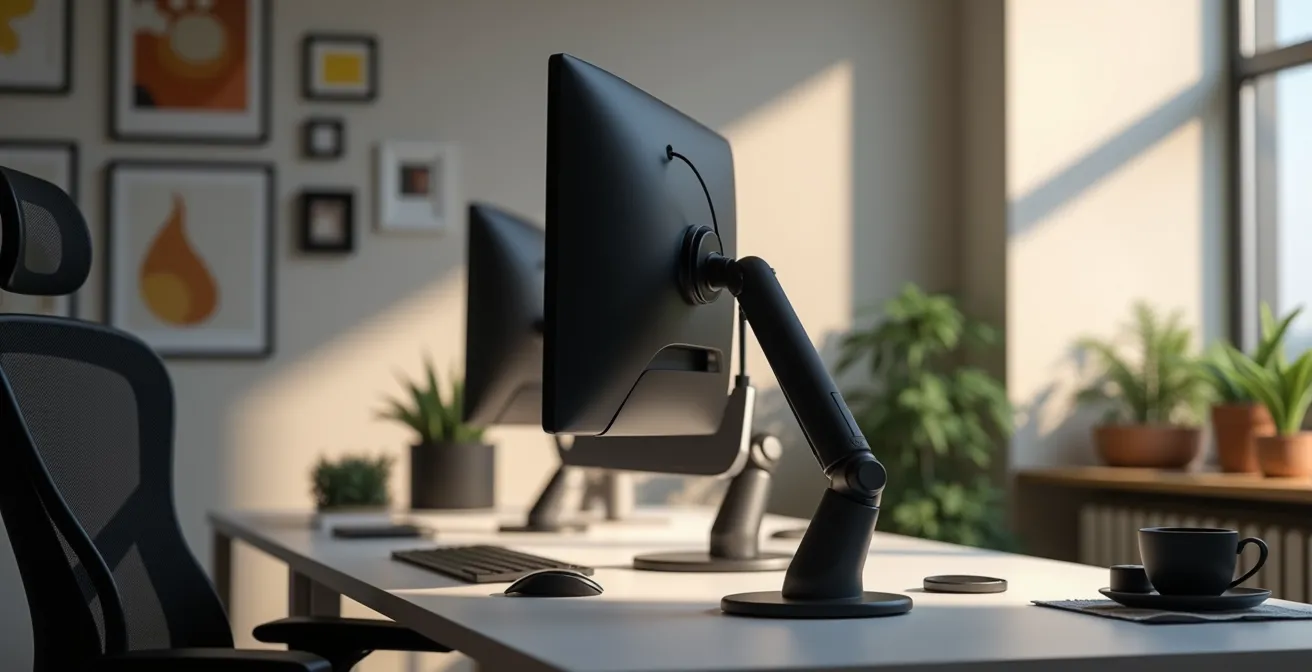
An optimized workspace, as shown above, is a clear signal of professionalism and dedication. It’s the physical manifestation of your commitment to high performance, making the investment easier for your employer to justify. It’s a tool, not a treat.
Ultimately, a properly equipped home office is part of the operational system for effective remote work. Presenting it as such makes it a logical and necessary business expense.
Email or Instant Message: Which Channel Should You Use for Non-Urgent Tasks?
One of the biggest sources of work-life blur is the tyranny of the instant notification. A constant stream of instant messages (IM) creates a state of perpetual reactivity, training your brain to believe every query is urgent. This sabotages deep work and makes it impossible to mentally disconnect. The solution is to establish clear communication protocols that define which channel to use for which type of request. This isn’t about ignoring people; it’s about respecting everyone’s focus and creating a more predictable communication environment.
Email should be the default for non-urgent tasks, project updates, and any information that needs to be archivable and thoughtfully considered. It carries an implicit understanding of a slower response time (hours, not minutes). Instant messaging, on the other hand, should be reserved for genuinely urgent blockers or quick, simple clarifications that can be resolved in a sentence or two. By creating and agreeing upon these rules as a team, you give everyone permission to turn off IM notifications when they need to focus, confident that they won’t miss a true emergency.
This clear separation of channels is a foundational element of your remote work operational system. It reduces anxiety, improves focus, and is a critical step in building a boundary between being “available” and being “interrupted.”
The following table provides a clear framework for making this choice, a critical tool for establishing team-wide communication protocols.
| Communication Type | Best Channel | Response Time | Use Case |
|---|---|---|---|
| Non-urgent requests | 24-48 hours | Task assignments, project updates | |
| Quick clarifications | Instant Message | 1-2 hours | Simple yes/no questions |
| Archivable information | 24 hours | Documentation, decisions | |
| Urgent blockers | Instant Message | 15-30 minutes | Critical issues needing immediate attention |
Adopting this disciplined approach allows you and your team to move from a culture of reactivity to one of intentional, focused communication.
The Physical Health Mistake Remote Workers Make That Leads to Back Pain
The most common physical health mistake remote workers make is deceptively simple: they sit still for too long. While office workers have natural interruptions—walking to a meeting room, going to a colleague’s desk, heading out for lunch—telecommuters often find themselves locked in the same position for hours. This prolonged sedentary state is the primary culprit behind the back pain, neck strain, and general physical discomfort that plague many home-based professionals. A recent survey even revealed that 68% of professionals have considered extreme work-life balance measures due to this exact physical strain. The mistake isn’t just a lack of movement; it’s the lack of an operational system to enforce it.
Your body is not designed to be static. Without the built-in movement triggers of a traditional office, you must create your own. This concept, which we can call “ergonomic discipline,” involves building small, consistent movements into your daily routine. It’s not about blocking out an hour for the gym; it’s about sprinkling two-minute “movement snacks” throughout your day. This could mean doing a set of squats while your coffee brews, stretching between meetings, or taking calls while walking around the room. The goal is to break up long periods of sitting and prevent your muscles from seizing up.
This isn’t just about feeling better; it’s about maintaining your ability to focus. Chronic pain is a massive cognitive drain. By implementing a system of regular, small movements, you are not only protecting your physical health but also preserving your mental energy and productivity. It’s a fundamental part of a sustainable remote work lifestyle.
Your 5-Step Anti-Sedentary Audit
- Identify Pain Points: List all the times during your day when you feel physically stiff or stagnant (e.g., after long video calls, during deep focus sessions). This is your discomfort map.
- Inventory Current Movements: Write down your existing, often unconscious, movement habits (e.g., getting water, walking to the bathroom). This is your baseline.
- Assess for Coherence: Compare your baseline inventory to the goal of moving at least once per hour. Identify the longest “no-movement” gaps in your day.
- Find Your Trigger: Identify a recurring event in your schedule that can act as a reliable reminder to move (e.g., the end of every meeting, sending a major email).
- Implement and Integrate: Attach one new, simple micro-movement (like 10 squats or a 2-minute stretch) to your chosen trigger. Start with just this one habit to ensure it sticks.
Think of movement not as a separate activity, but as an integrated part of your workflow—as essential as your keyboard and mouse.
How to Soundproof Your Home Office for Calls on a Budget?
A barking dog, a nearby construction site, or the sound of your family in the next room can instantly shatter your professional composure during an important call. While complete soundproofing can be expensive and invasive, most remote workers don’t actually need to build a silent bunker. The goal is usually more modest and achievable: reducing echo and dampening ambient noise to ensure your voice is clear. This is known as acoustic treatment, and it can often be done on a tight budget using items you may already own.
The core principle of budget acoustic treatment is to introduce soft, irregular surfaces into your workspace. Hard, flat surfaces like bare walls, wood floors, and large windows reflect sound waves, creating echo and making your room sound “live” or hollow on a call. Soft materials, by contrast, absorb these sound waves. Think of it as adding sound sponges to your room. A thick rug on the floor, heavy curtains over the windows, and a full bookcase against a wall can make a dramatic difference. Even a large canvas print or a fabric wall hanging contributes to absorbing sound.
Practical Example: The Skillcrush Acoustic Treatment Method
Remote teams have found tremendous success with simple, non-technical solutions. For instance, many workers have discovered that the most effective acoustic treatment involves strategically arranging existing furniture. By placing a full bookcase against the wall that faces you, you create a massive, irregular surface that diffuses sound waves before they can bounce back into your microphone. Similarly, hanging thick blankets or curtains on walls outside of your camera’s view is a classic, budget-friendly studio trick. The key insight is that most remote workers need to solve for echo (acoustic treatment), not block external noise (soundproofing), which is a much simpler and cheaper problem to solve with soft furnishings.
Before investing in expensive acoustic foam panels, audit your room for opportunities to add softness. You might be surprised at how much you can improve your call quality simply by rearranging your decor and adding a few plush items. This is a perfect example of how a small change to your physical operational system can have a huge impact on your professional presentation.
Your goal is not silence, but clarity. By focusing on absorbing echo with soft materials, you can create a professional-sounding home office without breaking the bank.
How to Position Your Monitor to Avoid Neck Strain During 8-Hour Shifts?
The dull ache in your neck and shoulders at the end of the day is not an inevitable part of remote work. It’s a direct result of poor ergonomics, and the most common offender is your monitor’s position. Staring down at a laptop screen or craning your neck towards a poorly placed monitor for eight hours forces your body into an unnatural posture, putting immense strain on your cervical spine. This is where ergonomic discipline becomes a non-negotiable part of your professional toolkit. Properly positioning your monitor is one of the highest-impact changes you can make to your physical well-being.
The golden rule is to align the top of your screen with your eye level. This encourages a neutral neck position, where your head is balanced directly over your shoulders. For laptop users, this is impossible without external equipment. A laptop stand or a stack of books is essential to elevate the screen. An external keyboard and mouse are then required to keep your arms in a relaxed, natural position. The monitor should also be placed at roughly an arm’s length away to avoid eye strain. This simple setup forms the foundation of an ergonomic workspace that supports your body instead of fighting it.
However, true ergonomic discipline is dynamic, not static. Even in a perfect position, staying rigid for hours is harmful. It’s important to make micro-adjustments throughout the day. Here is a checklist for setting up and maintaining your monitor position:
- Arm’s Length Rule: Position the monitor approximately 20-30 inches from your eyes. You should be able to comfortably touch the screen with your fingertips.
- Eye-Level Alignment: Adjust the height so the top of the screen is at or slightly below your eye level. (Note: If you wear bifocals, you may need to lower it further.)
- Slight Backward Tilt: Tilt the monitor back 10-20 degrees, like a sheet of paper on a drafting table, to reduce glare and match your natural line of sight.
- Center Your Primary Monitor: Place your main screen directly in front of you. A secondary monitor should be placed to the side at a 30-degree angle, requiring you to turn your head only slightly.
- Practice Dynamic Positioning: Make small changes to the height or angle every couple of hours to vary your posture. A monitor arm is invaluable for this, allowing for effortless adjustments.
Treating your ergonomic setup with the same seriousness as your project deadlines is an investment that will pay dividends in comfort, focus, and long-term health.
Key Takeaways
- True work-life separation is systemic, not spatial; it requires designing distinct operational protocols for work and home.
- Establish clear communication rules (e.g., email for non-urgent tasks, IM for blockers) to eliminate the pressure of constant availability.
- Implement “ergonomic discipline” by optimizing your workspace and integrating small, regular movements to combat the physical strain of sedentary work.
When to Call a Meeting vs Sending a Collaborative Document Update?
“This meeting could have been an email” has become the mantra of the modern workplace for a reason. Unnecessary meetings are one of the biggest drains on productivity and a major source of frustration for remote teams. With approximately 22 million people working entirely from home in some regions, the need for clearer meeting guidelines has never been greater. Deciding between a synchronous meeting and an asynchronous update is a critical part of your team’s communication protocol. Getting it right protects everyone’s most valuable resource: focused time.
The decision framework is simple. Call a meeting when the primary goal is connection, collaboration, or consensus-building. This includes sensitive topics where non-verbal cues are important, complex problem-solving that requires real-time brainstorming, or situations where you need to get a group to a shared decision. A meeting’s value is in the dynamic, back-and-forth exchange of ideas that is difficult to replicate asynchronously. If the goal is simply to broadcast information, a meeting is the wrong tool.
For status updates, feedback collection on a document, or general announcements, a collaborative document or a well-structured email is almost always superior. This approach respects everyone’s schedule, allowing them to process the information and provide thoughtful responses at a time that works for them. Adopting a “document-first” culture, where meetings are the exception rather than the rule, is a powerful step toward a more efficient and respectful remote work environment.
The following decision framework can help you and your team make the right choice every time, preserving meetings for when they are truly necessary.
| Scenario | Best Approach | Reason |
|---|---|---|
| Building consensus | Meeting | Real-time discussion needed |
| Status updates | Document | Information broadcast only |
| Sensitive topics | Meeting | Non-verbal cues essential |
| Feedback collection | Document | Allows thoughtful responses |
| Complex problem-solving | Meeting | Requires immediate collaboration |
By being disciplined about this choice, you not only reclaim your own calendar but also demonstrate respect for your entire team’s time and focus.
Slack vs Microsoft Teams: Which Platform Fits a Small Creative Agency?
Choosing a collaboration platform is a foundational decision for any remote team, but for a small creative agency, the stakes are even higher. The right tool can foster a culture of rapid-fire brainstorming and fluid collaboration, while the wrong one can feel clunky and stifle creativity. The two main contenders, Slack and Microsoft Teams, offer similar core functionalities but have distinct philosophies that make them better suited for different environments. The choice isn’t about which is “better” overall, but which one aligns with your agency’s specific workflow and culture.
Slack is often the preferred choice for creative agencies due to its user-centric design, playful interface, and unparalleled ecosystem of third-party integrations. Its core strength lies in its ability to act as a central hub, pulling in notifications and functionalities from a vast array of specialized creative tools (like Figma, Asana, and Adobe Creative Cloud). The channel-based structure is intuitive, and features like Huddles and Clips encourage the kind of spontaneous, informal communication that creative work thrives on. Slack feels less like a corporate tool and more like a dynamic, digital studio space, which resonates with the culture of many agencies.
Microsoft Teams, on the other hand, finds its strength in its deep integration with the Microsoft 365 ecosystem. If your agency already relies heavily on SharePoint, OneDrive, and the Office suite, Teams offers a seamless, all-in-one solution. Its file management is more robust and structured than Slack’s, which can be an advantage for managing large project files and client assets. While its interface can feel more corporate, its video conferencing is powerful and its organizational structure (Teams > Channels) can provide a level of order that may be beneficial for agencies juggling numerous clients with complex documentation needs. The choice often comes down to a simple trade-off: do you prioritize best-in-class integration with a wide variety of tools (Slack) or a unified, all-in-one experience within a single ecosystem (Teams)?
For a small creative agency, the decision should be guided by your existing toolset and desired culture. If your workflow is built on a diverse set of modern apps and you value a vibrant, integration-rich environment, Slack is likely the better fit. If your operations are centered around Microsoft’s suite and you need a more structured, consolidated platform, Teams is the logical choice.